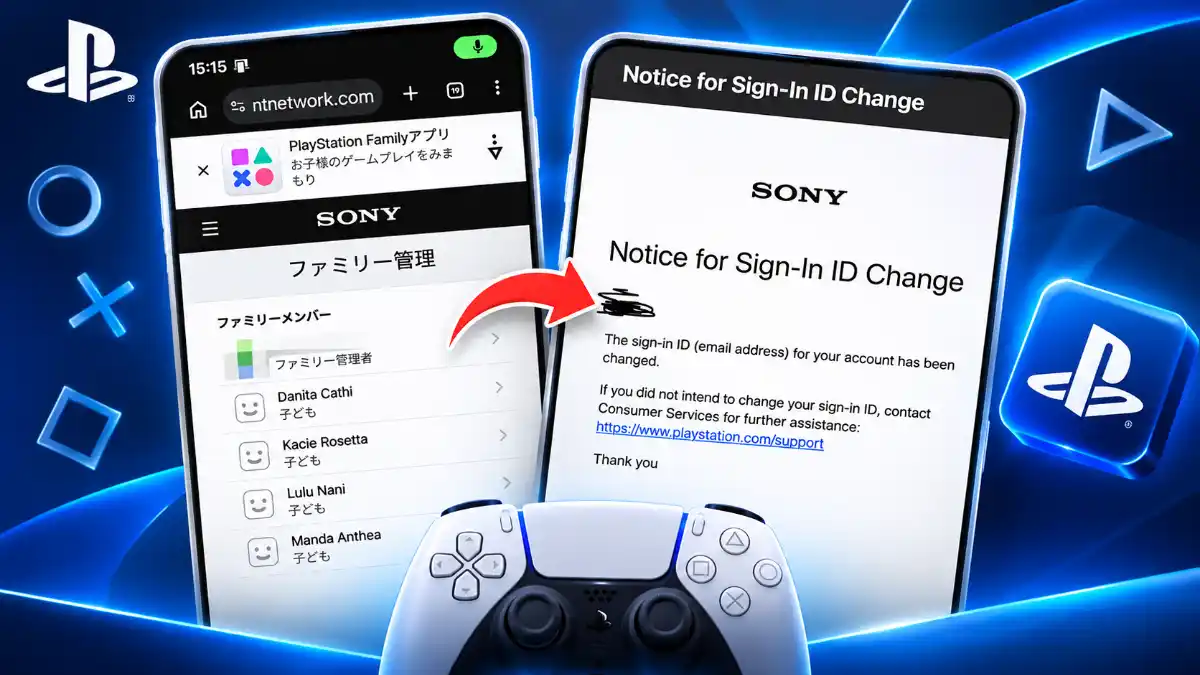
Unknown child accounts appearing in PlayStation Network family groups have raised concerns about PSN account security. The issue is especially frustrating because PlayStation’s standard family controls do not let account owners simply remove a child member.
While the activity has sparked fears about passwords, two-factor authentication, and saved payment details, the cause remains unconfirmed. A specific authentication bypass or exposure of full payment-card details has not been established.
Here’s how to check your PSN Family Management settings, review spending permissions, and secure your account if you find something unfamiliar.
Quick Answer
To check for unknown PSN family accounts, sign in to PlayStation Account Management and open Family Management. Review every member and check each child account’s spending limit. If you find an unfamiliar child account, contact PlayStation Support, as child members cannot be removed through standard family controls. A specific password or two-factor authentication bypass remains unconfirmed.
What Is the PSN Family Account Security Concern?
PlayStation’s Family Management system allows a family manager to oversee child accounts, adjust parental controls, and manage spending permissions.
The concern involves unfamiliar child accounts appearing in these family groups. Unexpected changes to a sign-in email address are another warning sign that deserves immediate attention. The available information does not establish whether all these incidents have the same cause.
For account owners, the immediate priority is checking whether every family member belongs there. If you manage a household’s PlayStation accounts, review the list carefully rather than checking only your password or recent purchases.
Family settings matter because they control more than membership. They also determine which accounts have parental permissions and how much children can spend from the family manager’s wallet.
Can Attackers Bypass PSN Passwords and Two-Factor Authentication?
A specific password or two-factor authentication bypass has not been independently established.
Suspicious activity on an account with two-factor authentication enabled does not, by itself, explain how the activity happened. It also does not prove that the same method works against every PSN account. The exact entry point remains unclear.
Players should therefore keep their security protections enabled.
Sony recommends passkeys as a secure sign-in option. Its security guidance also emphasizes protecting the email account connected to PlayStation, since access to that inbox can allow someone to reset passwords for other services.
The important distinction is between finding unauthorized activity and knowing the technical method behind it. Until the cause is established, claims of a confirmed PSN-wide authentication bypass should be treated cautiously.
Can Unknown Family Members Access Your Payment Details?
An unfamiliar family account does not automatically mean your saved payment-card details are visible.
Sony’s documentation explains that purchases made by a child account use the family manager’s wallet. Those purchases are controlled by a monthly spending limit, which defaults to 0. Family managers and appointed parents or guardians can change that limit.
This makes spending permissions important, but wallet access and card-data exposure are different issues.
There is no verified evidence in the available information showing that this issue exposes full saved payment-card details. Players should still review their transaction history and investigate purchases they do not recognize.
If no child purchases are intended, check that each child account’s monthly spending limit is set to 0. Do not assume the setting is correct without reviewing it.
Why You Cannot Simply Remove an Unknown Child Account
PlayStation handles adult and child family members differently.
Adult members can be removed through Family Management. Child members cannot be removed through the normal family-management controls. Sony states this restriction in its official documentation.
That limitation can make an unfamiliar child account particularly frustrating. You may be able to inspect its settings and restrict spending, but you will not have the same removal option available for an adult account.
If you find an unknown child member, contact PlayStation Support for help. Avoid instructions promising a simple removal button that does not exist in the standard child-account controls.
How to Check Your PlayStation Family Accounts
You can review your family group through a browser, PS5, PS4, or the PlayStation Family app.
Through a Web Browser
- Sign in to PlayStation Account Management.
- Open Family Management.
- Review every listed family member.
- Select a child account to inspect parental controls and spending permissions.
On PS5
- Open Settings.
- Select Family and Parental Controls.
- Open Family Management.
- Check the listed accounts.
- Select a child account and review Parental Controls, including Monthly Spending Limit.
On PS4
- Open Settings.
- Select Parental Controls/Family Management.
- Open Family Management.
- Review each family member.
- Select a child account, then open Applications/Devices/Network Features to check its Monthly Spending Limit.
In the PlayStation Family App
Open Settings, then Family Management, to review family members. You can also select a child from the app’s home screen and check the Monthly Spending Limit widget.