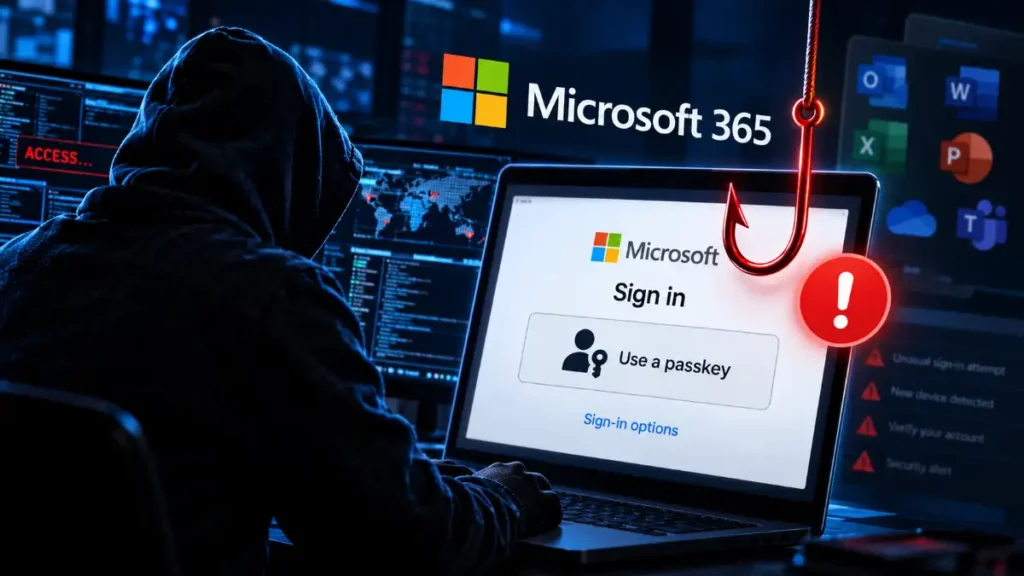
Cybercriminals are now using fake passkey setup and update requests to trick employees into giving them access to Microsoft 365 accounts. The goal is not to break passkeys themselves—it is to use fear, urgency, and fake IT-support messages to steal sign-in access, add their own login method, and quietly take company data from Outlook, SharePoint, and OneDrive.
Microsoft says it has been tracking this type of attack since May 2026. The campaign uses phone calls, SMS messages, fake Microsoft login pages, and even Microsoft Teams messages to target business users.
What Is the Microsoft 365 Passkey Scam?
In this scam, hackers pretend to be someone from a company’s IT support team. They contact an employee and say the person needs to set up or update a passkey, multi-factor authentication (MFA), or single sign-on (SSO) setting.
The attacker may claim that the employee will lose access to email, Microsoft Teams, SharePoint, or other work tools if they do not act immediately.
The message may sound like this:
“Your Microsoft 365 passkey needs to be updated today. Please complete the setup now to avoid losing access to your account.”
The victim is then sent a link to a fake Microsoft sign-in page. It can look very convincing, using Microsoft-style logos, colors, and account login screens. But the page is controlled by hackers.
Once the victim signs in or approves an unexpected login request, attackers can use that access to enter the company’s Microsoft 365 environment.
Passkeys Are Not the Problem
It is important to understand that passkeys are not broken or unsafe.
Passkeys are designed to be more secure than traditional passwords because they can help prevent normal phishing attacks. A real passkey is tied to the correct website or app, making it much harder for a fake site to steal it.
In this campaign, hackers are abusing the idea of passkeys. They know many employees are hearing more about passkeys, MFA, and modern login security. So they use these terms to make their fake IT-support request sound normal and urgent.
The real problem is social engineering.
Social engineering means tricking a person into doing something unsafe. Instead of breaking into Microsoft directly, attackers persuade a user to hand over access or approve an attacker-controlled login.
How the Fake Passkey Attack Works
The attack often follows a simple pattern.
Step 1: Hackers Research the Target
Before contacting an employee, attackers may collect information about the company, its workers, its IT systems, and its Microsoft 365 setup.
This helps them make the fake call or message sound believable. They may know the company name, employee name, job role, email address, or which tools the business uses.
Some attackers contact employees through personal phone numbers, which can make the call feel more urgent or private.
Step 2: The Fake IT Support Call or Message
The victim receives a phone call, text message, email, or Microsoft Teams message.
The attacker may say they are:
- From the company IT helpdesk
- From the security team
- From Microsoft support
- From an identity-management team
- From an outside IT provider
They often create pressure by saying the employee must act quickly.
Common fake reasons include:
- Your passkey needs to be updated
- Your MFA settings have expired
- Your Microsoft 365 account has a security problem
- Your SSO access needs to be fixed
- You need to verify your identity
- You may lose access to your work account
Step 3: The Victim Opens a Fake Microsoft Page
The attacker sends a link to a page that looks like Microsoft 365 or Microsoft Entra.
The website address may include the company’s name, which can confuse people. For example, the fake URL may look like this:
yourcompany.login-security-help.com
At first glance, an employee may see the company name and think the site is safe. But the important part of a web address is the main domain at the end.
In the example above, the real domain is login-security-help.com, not the employee’s company or Microsoft.
Microsoft has seen attackers use fake sign-in pages and attacker-controlled authentication flows to steal access to business accounts.
Step 4: The Employee Signs In or Approves a Code
There are different ways attackers can steal access.
One common method is a fake login page. The victim enters their username and password, then completes an MFA request. The page may pass the information to the real Microsoft login service while secretly capturing the victim’s active sign-in session.
Another method is called device-code phishing.
The attacker gives the victim a code and tells them to enter it on a Microsoft login page. The page itself may be real, but the code connects the victim’s account to an attacker-controlled app or device.
This is dangerous because the employee may think they are completing a normal security task, while they are actually approving access for a hacker.
What Happens After Hackers Enter the Account?
Getting into the account is only the first step. Attackers usually move quickly to keep access and search for valuable data.
Hackers Add Their Own Login Method
After entering a Microsoft 365 account, attackers may add their own MFA method.
For example, they may register:
- Their own Microsoft Authenticator app
- Their own phone number
- A one-time password method
- A security key
- Another passkey or authentication method
This gives them ongoing access, even if the employee later changes their password.
Microsoft has seen suspicious sign-ins followed by attacker-added authentication methods, which is an important warning sign for security teams.
Hackers Search Company Data
Once attackers have access, they can look through important Microsoft 365 services, including:
- Outlook emails and attachments
- SharePoint files
- OneDrive files
- Microsoft Teams information
- Employee accounts and groups
- Company applications and permissions
Microsoft says attackers have used Microsoft Graph to search cloud environments, identify users and permissions, and find valuable files. Microsoft Graph is a tool that allows apps and services to work with Microsoft 365 data.
Hackers Steal Emails and Files
The attackers may download data from SharePoint and OneDrive or collect sensitive emails from Exchange Online.
They may not download everything at once. Instead, they can take files slowly over hours or days to avoid raising alarms. This makes the activity harder to notice, especially in large organizations where file access happens all the time.
The stolen information may include:
- Customer records
- Business plans
- Financial documents
- Internal emails
- Employee information
- Contracts
- Password-reset emails
- Security documents
- Private project files
The information can then be used for ransomware, extortion, fraud, further phishing, or sale on cybercrime forums.
Warning Signs of a Fake Passkey Request
Employees should be careful when they receive any unexpected request related to passkeys, MFA, Microsoft 365, or SSO.
Here are the biggest red flags:
- You receive an unexpected call or text from “IT support.”
- Someone says you must act immediately or lose access.
- You are asked to click a login link sent through SMS, email, or Teams.
- You receive an MFA prompt that you did not request.
- Someone gives you a code and asks you to enter it into a Microsoft login page.
- The website address is not an official Microsoft or company domain.
- The caller asks you to add a new Authenticator app, phone number, passkey, or security method.
- The page asks for a recovery phrase or seed phrase.
- The caller refuses to let you verify their identity through normal company support channels.
A real IT team should have a clear way for employees to verify security requests. If something feels rushed or unusual, stop and confirm it through your company’s official helpdesk portal or known IT contact.
How Employees Can Stay Safe
The best protection is to slow down and verify every unexpected security request.
Never Use an Unsolicited Login Link
Do not sign in through a link sent by an unknown caller, unexpected email, or random Teams message.
Instead, open your normal browser and visit the Microsoft 365 sign-in page or your company’s official internal portal yourself.
Do Not Approve Unexpected MFA Prompts
If you get a login approval request that you did not start, deny it.
Do not approve it because someone on the phone says it is needed. A real IT employee should not pressure you to approve an unexpected sign-in request.
Do Not Enter Device Codes for Someone Else
Never enter a code given to you by a caller, text message, or email unless you personally started the sign-in process and fully understand why the code is needed.
A device code can give an attacker access to your account.
Check the Website Address Carefully
Look at the full web address before signing in.
A company name placed at the beginning of a URL does not prove the website is real. Check the main domain and make sure it belongs to Microsoft or your organization.
Verify IT Calls Independently
If someone claims to be from IT support:
- End the call
- Visit the official helpdesk website
- Call the number listed on your company’s internal portal
- Message a known IT contact through the normal company channel
- Ask whether there is a real passkey or MFA update happening
Do not use a phone number, email address, or link supplied by the person who contacted you.
What Microsoft 365 Admins Should Do
Microsoft 365 administrators should look for a chain of suspicious events, not just one warning.
A possible attack may include:
- An unusual sign-in from an unknown location, device, or IP address.
- A new MFA method or authentication device added soon after the sign-in.
- Heavy Microsoft Graph activity or unusual app permissions.
- Large downloads from SharePoint or OneDrive.
- Strange mailbox activity, such as unusual email searches, forwarding rules, or attachment access.
Microsoft recommends revoking active sessions, resetting credentials, removing unauthorized authentication methods, and reviewing Microsoft 365 activity when a compromise is suspected.
Organizations should also consider these security steps:
- Use phishing-resistant MFA and passkeys where possible.
- Require managed devices for sensitive Microsoft 365 services.
- Restrict device-code authentication if it is not needed.
- Limit user consent for unknown third-party apps.
- Review Microsoft Graph permissions regularly.
- Monitor unusual SharePoint, OneDrive, Outlook, and Entra activity.
- Train employees to verify all unexpected IT-support requests.
What to Do If You Clicked the Link
If you entered your Microsoft 365 details, approved an unexpected sign-in, or added an authentication method because of a suspicious call, report it immediately.
Do not wait to see if anything happens.
Your IT or security team should:
- Revoke active Microsoft 365 sessions
- Reset the account password
- Remove unknown MFA methods, passkeys, phone numbers, and Authenticator registrations
- Check mailbox forwarding and inbox rules
- Review SharePoint and OneDrive downloads
- Review Microsoft Graph activity and connected apps
- Investigate whether sensitive company data was accessed or stolen
Fast reporting can reduce damage. The earlier a compromised account is secured, the less time attackers have to search emails, copy files, and spread to other systems.
Final Thoughts
This passkey-themed Microsoft 365 scam shows that hackers do not always need to break advanced security technology. Sometimes, they only need to convince one employee that a fake security request is real.
Passkeys remain a strong security tool. But users must remember one simple rule: never trust an unexpected passkey, MFA, or SSO update request without verifying it independently.
If a caller says you must act now, slow down. Do not click the link. Do not share a code. Do not approve a login you did not start. Contact your real IT team through a trusted company channel first.